Office Skills with Word
Brief tips for working with Word
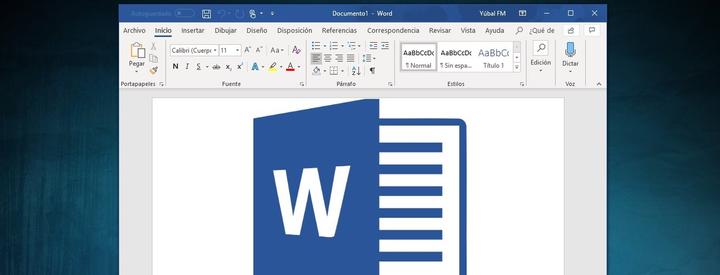
Tips for Office Skills in Microsoft Word
Word is the text processing tool in Microsoft Office, frequently used to create documents. While it is very user-friendly, there are some tips to accelerate text editing. This can be particularly important when regularly working with a large number of documents.
Word Shortcuts
You can select a sentence within a paragraph by pressing “Ctrl + Click”. This allows you to quickly select a sentence, for example, when you want the first sentence to be bold (Ctrl + B).
You can move any selection by dragging it with the mouse.
Use the combination “Alt + Shift + Arrow Up/Down” to move a paragraph.
Justify a paragraph with the combination “Ctrl + J.”
Adjust line spacing using different combinations: “Ctrl + 1” (single spacing), “Ctrl + 2” (double spacing), “Ctrl + 5” (1.5 spacing), and “Ctrl + 0” (adds a blank line before the paragraph).
Delete text faster (word by word instead of letter by letter) by pressing “Ctrl + DELETE” or “Ctrl + BACKSPACE”.

The Clipboard stores all copied items in chronological order. Access it by clicking the arrow in the lower-right corner of the Clipboard section under Home.
Insert a page break with the combination “Ctrl + Enter.”
Styles
Manually changing formatting repeatedly can be inefficient. You can save formatting to reuse in the future. Styles are located under the Home tab in the Styles section.

Modify a style by right-clicking it and selecting “Modify.” You can adjust indentation, justification, font type, font size, and more. You can also select all instances (paragraphs) where the style is used.
The following video explains the process well:
You can also update a style to match an existing paragraph. Select the paragraph and, in the Styles section, right-click the style, choosing “Update … to Match Selection”.
Additionally, you can create a new style. Select the paragraph with the modified style, and a window will appear with options. Click on Styles and then Create Style. This allows new text to adopt the predefined style.
Styles can be saved for the current document or for all documents created using the same template.
Locking Styles
An organization may require a corporate format template and prevent modifications to the formatting. In this case, you can lock the style settings. Note that this will restrict changes to font type, size, spacing, indentation, etc., except for the predefined styles. Ensure all required styles are created before locking.
To lock formatting, go to Review, click on Restrict Editing under Protect, and a window will open on the left. Choose Formatting Restrictions and its settings.

In the settings, deselect all styles except the corporate ones previously created.
Finally, you will see three format options, including “Block Theme or Scheme Changes” and “Prevent Quick Style Set Changes.” The first prevents theme changes (set of styles), and the second blocks changes to quick styles. It is recommended to enable both.
Press “Yes, Apply Protection” to finalize. Optionally, Word allows you to create a password to prevent disabling the formatting restrictions.
Ruler
Clicking on the ruler (above the document) will create an “L” marker. This marker sets where the cursor moves after pressing Tab. Clicking on the symbol to the left of the ruler changes it to an inverted “T.” Clicking on the ruler again adds another marker, indicating where the cursor will move (centered). This is a simple way to center titles and content. Experiment with various symbols and ruler functions.
Titles for Figures/Tables
You can add titles to figures and tables. The title formatting can also be modified under the Styles tab. This allows for numbering figures and tables and implementing a list of figures and tables.
Sources:

Luis José Zapata Bobadilla
Economist - Analyst
Economist and advocate for innovative digital payment systems. Passionate about exploring monetary policy, blockchain technology, machine learning, and their transformative impact on the financial ecosystem.