Webscraping 101
The internet offers a wealth of free and easily accessible information. There are two types of available data: data that can be easily downloaded through a “download” button and data visible on web pages.
To obtain both types of data, it is not necessary to manually download them. It is possible to automate the process through code.
In this post, I will introduce how to download the first type of data (data requiring only pressing a “download” button) automatically via code. However, to achieve this, it is important to understand the mechanisms that enable downloading data online. Today, we will discuss two such mechanisms: the POST and GET methods.
HTTP: GET and POST
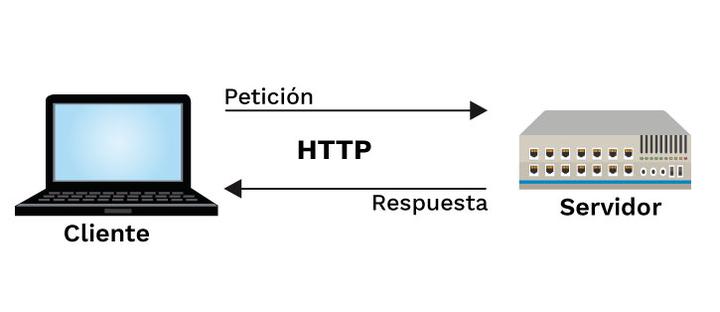
The HTTP protocol is the communication protocol used by browsers to access web pages. HTTP regulates how the server (where the web page is hosted) sends resources to the client (the web browser). These resources contain the “instructions” a web browser (e.g., Chrome) uses to display and interact with the web page.
A URL is a web address that defines how a resource is located on the internet (e.g., https://www.google.com). When entering this address into a browser, it sends an HTTP request to the server, asking for the web resource (using a GET or POST method). The server receives the request, searches for the file in question (an HTML page, Excel file, etc.), and sends a header back to the browser. The header is essentially a message indicating whether the search was successful (whether the file exists). If successful, the server also sends the requested file.
For data downloads, two primary HTTP methods are commonly used: GET and POST. The GET method is used to “retrieve” resources from the server via a request. The POST method allows for “retrieving” and “saving” resources on the server by including additional data in the request.
GET: This HTTP method is used to retrieve information from a server. It sends a request to obtain a response (e.g., an Excel file or data we want to download) to the client (web page). A key feature of the GET method is that it allows the data to be transmitted “visibly” in the browser through the URL using queries. A query is a message added to the URL specifying the required information. For example, suppose we want to request visitor data for November from a hypothetical website, www.luis.com. The variables might include
variable = visitsandmonth = November. The query would look like: www.luis.com/download?variable=visits&month=november. The bold section is called the query. This query sends the request to the server and receives a response in return (e.g., an Excel file). Each website has its own syntax for how to structure such requests.POST: Another HTTP method, which, unlike GET, sends information to be processed and stored on the server. The POST method can also be used to download data. The uniqueness of POST for downloading data lies in the use of two URLs. This improves server security. To download a file with the POST method, a query is sent similar to GET. However, instead of immediately providing a response, the server opens a temporary link at another URL for the file download.
Example of Downloading with GET and POST
To better understand the GET and POST protocols, we will use both methods to download data available on the COES website. The site contains data that can be downloaded using both methods.
Example: POST Method
The COES Indicators Portal allows for downloading daily electricity production data up to the previous day.
To access this section, go to the Indicators Portal on the COES website. Clicking the export button sends a query containing the selected date range in the request, and in return, an Excel file with the data is provided. How do we determine whether the method is POST or GET? It’s easy, using web analysis tools like the Chrome Developer Tools.

Figure 1: Chrome Developer Tools
Clicking on it reveals several tools, the most relevant being Network. Selecting Network shows the interaction between our client (web page) and the COES server. First, click Clear to clean up the workspace and focus on future interactions. Then, click the Export button on the COES webpage (after selecting the date range) to download the Excel file. In the Network area, two interactions appear. The presence of two interactions suggests the use of a POST method (one URL for sending and another for downloading).

Figure 2: Network
Click the first interaction (exportargeneracion) for more details. Since it’s the first interaction, it should contain the request sent to the server.

Figure 3: Headers - POST
We can see that the Request Method is POST. Additionally, the request URL is "https://www.coes.org.pe/Portal/portalinformacion/exportargeneracion". Finally, the request sends three pieces of data: the start date (fechaInicial), the end date (fechaFinal), and an indicator (indicador).
Note the date format: day/month/year, where both the day and month always have two digits. This format is crucial when sending the request.
A header acts as metadata (additional descriptive information) included in the request (request) and response. There are 15 request headers in the image. While not mandatory, they can be helpful, as we will see later.
Finally, the Status Code = 200 indicates a successful interaction.
Thus, we can conclude that the method for obtaining this information is POST, including the requested date range in the query.
Since it’s a POST method, the request does not provide an immediate response. We must check the second interaction to find the URL for downloading the data.
Clicking on the second interaction (descargargeneracion) reveals the following information:

Figure 4: Headers - GET
Here, a “gateway” to the data was opened at the URL: “https://www.coes.org.pe/Portal/portalinformacion/descargargeneracion”. This interaction uses the GET method, meaning that entering the URL automatically retrieves the data from the server. Since the request data was already sent in the previous interaction, no additional query is needed.
Example: GET Method
In this example, we will download data from the Daily Operation Evaluation Report (IEOD). This report provides more granular daily electricity consumption data, such as demand by geographic zones, large companies, resources, and more. To access this data, first, visit the IEOD platform and verify whether the download function uses POST or GET.

Figure 5: IEOD
After selecting a date on the IEOD platform and choosing the desired Excel file ("Anexo1_Resumen_0709.xlsx"), right-click on the link to copy the URL. In this case, the copied URL is: “https://www.coes.org.pe/portal/browser/download?url=Post%20Operaci%C3%B3n%2FReportes%2FIEOD%2F2020%2F09%20Setiembre%2F07%2FAnexo1_Resumen_0709.xlsx”. From the bold portion, it is evident that this is a GET method (data added to the request is visible in the URL, unlike POST). But which parts of the request change, and what do characters like %2F, %20, or %C3%B3 mean?
Using the Network section of the Chrome Developer Tools, we can see that the query starts after download?url=.

Figure 6: Headers - GET
From this, we can infer that the GET portion carrying the data, or the query, is: “Post Operación/Reportes/IEOD/**2020

Luis José Zapata Bobadilla
Economist - Analyst
Economist and advocate for innovative digital payment systems. Passionate about exploring monetary policy, blockchain technology, machine learning, and their transformative impact on the financial ecosystem.